![MainLogo-White-Clear-1.png]](https://support.cohart.com/hs-fs/hubfs/MainLogo-White-Clear-1.png?height=40&name=MainLogo-White-Clear-1.png)
How to Change Your Password
Cohart might have given you a temporary password when your account was created, or you might need to change it for security reasons. Here are the steps to change your password:
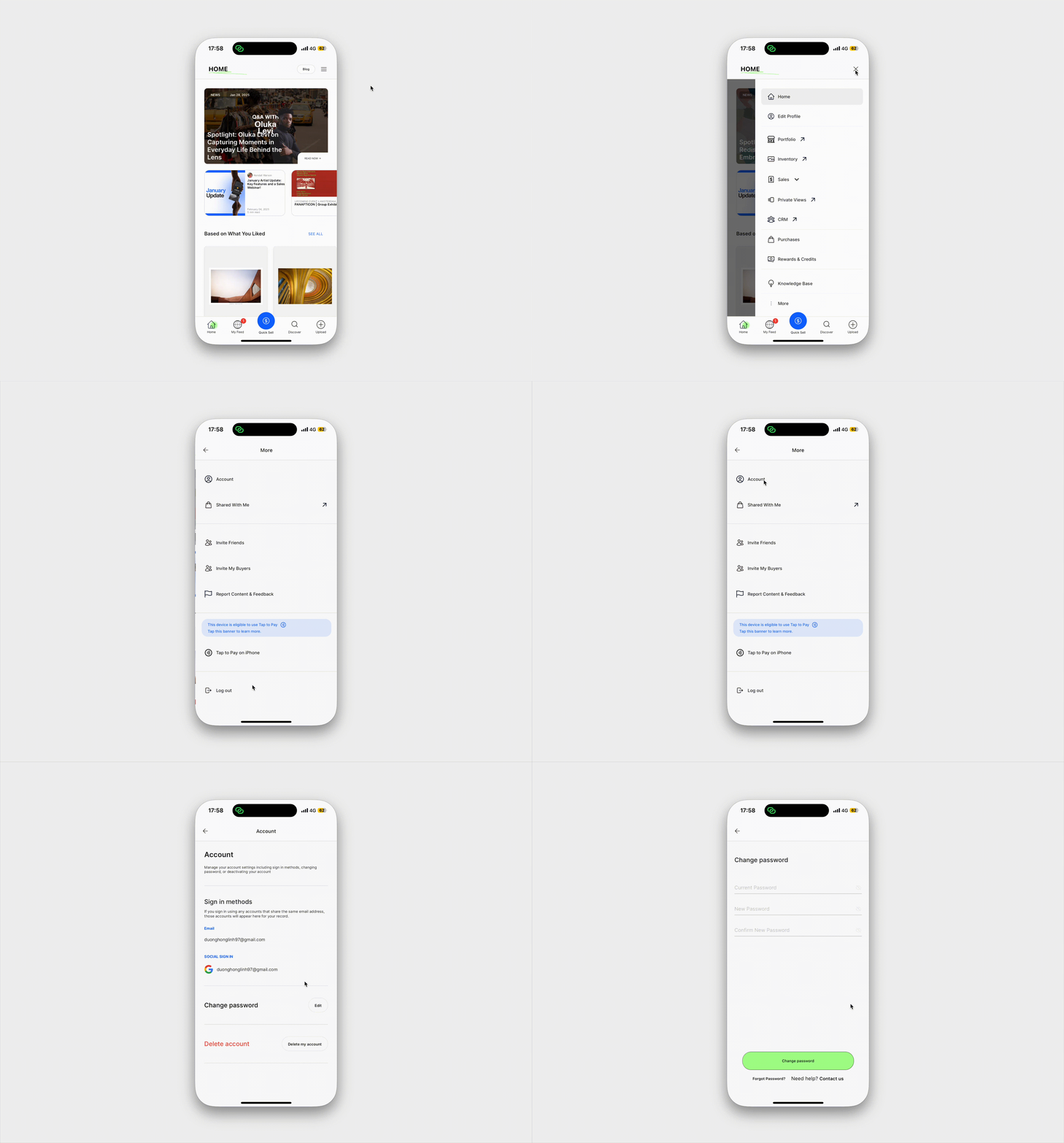
On the mobile app
- Download the Cohart mobile app
- Log in to your Cohart account
- Navigate to Home > Top right menu > More > Account
- In the "Change Password" section, tap on
Editbutton -
Enter your current password, then enter a new password and confirm the new password. Forgot your password?
- Tap
Change Passwordto confirm
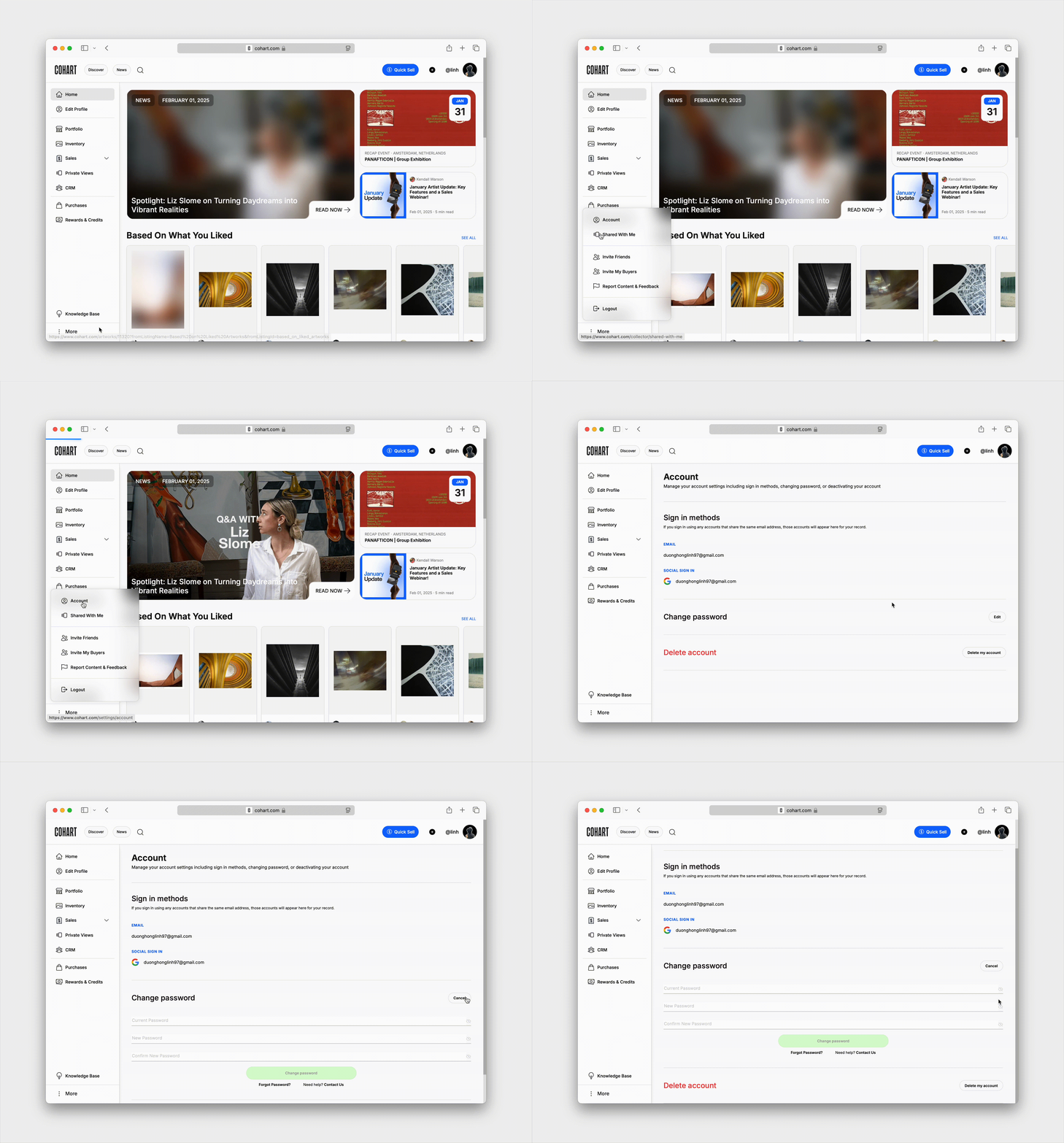
On the web-app
- Log in to your Cohart account
- Navigate to your Account Settings
- In the "Change Password" section, click on
Editbutton -
Enter your current password, then enter a new password and confirm the new password. Forgot your password?
- Click
Change Passwordto confirm.
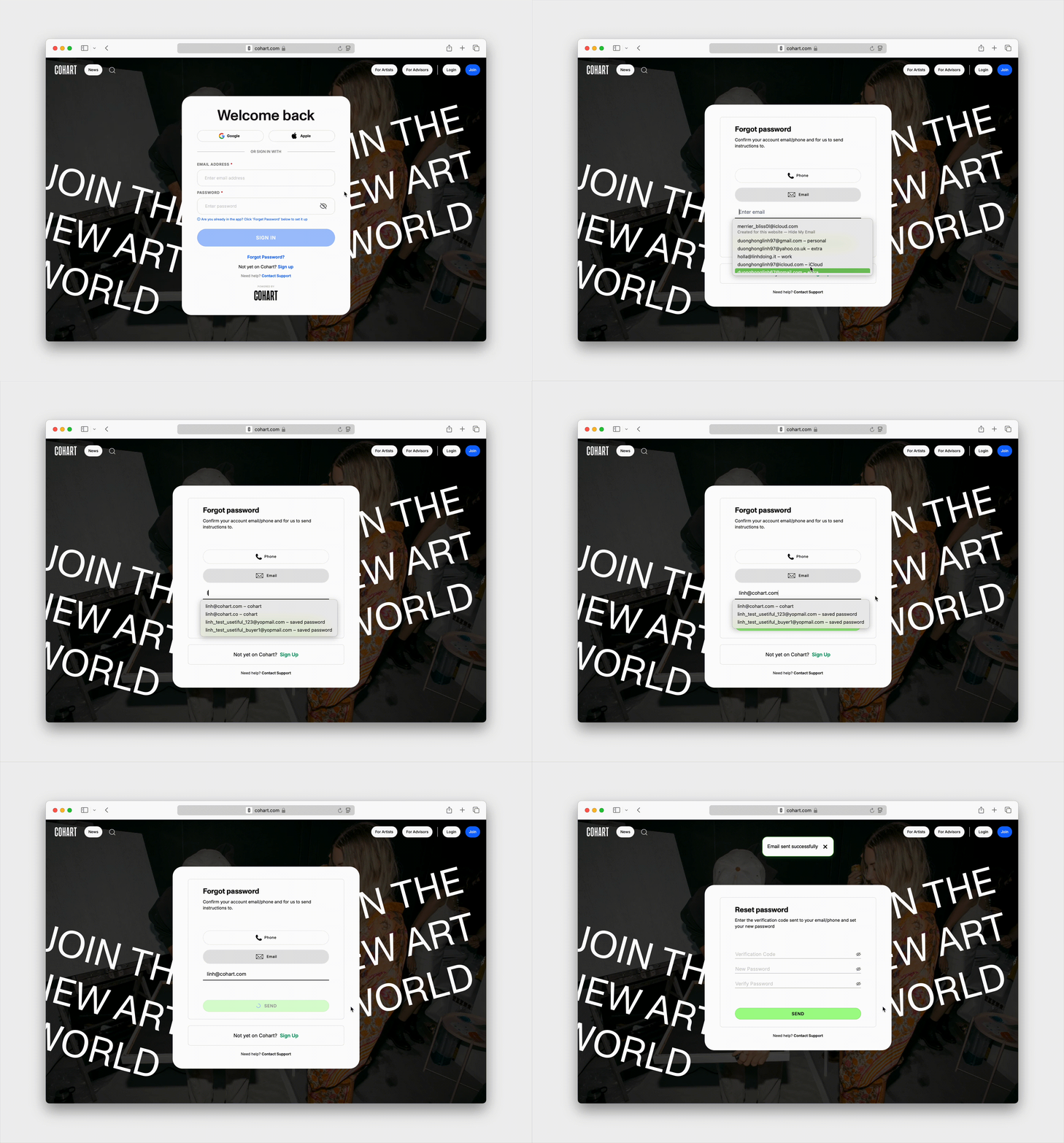
How to Reset Your Password
If you had lost your temporary password or forgotten a password you previously set, you can reset it to a new password. Here's how:
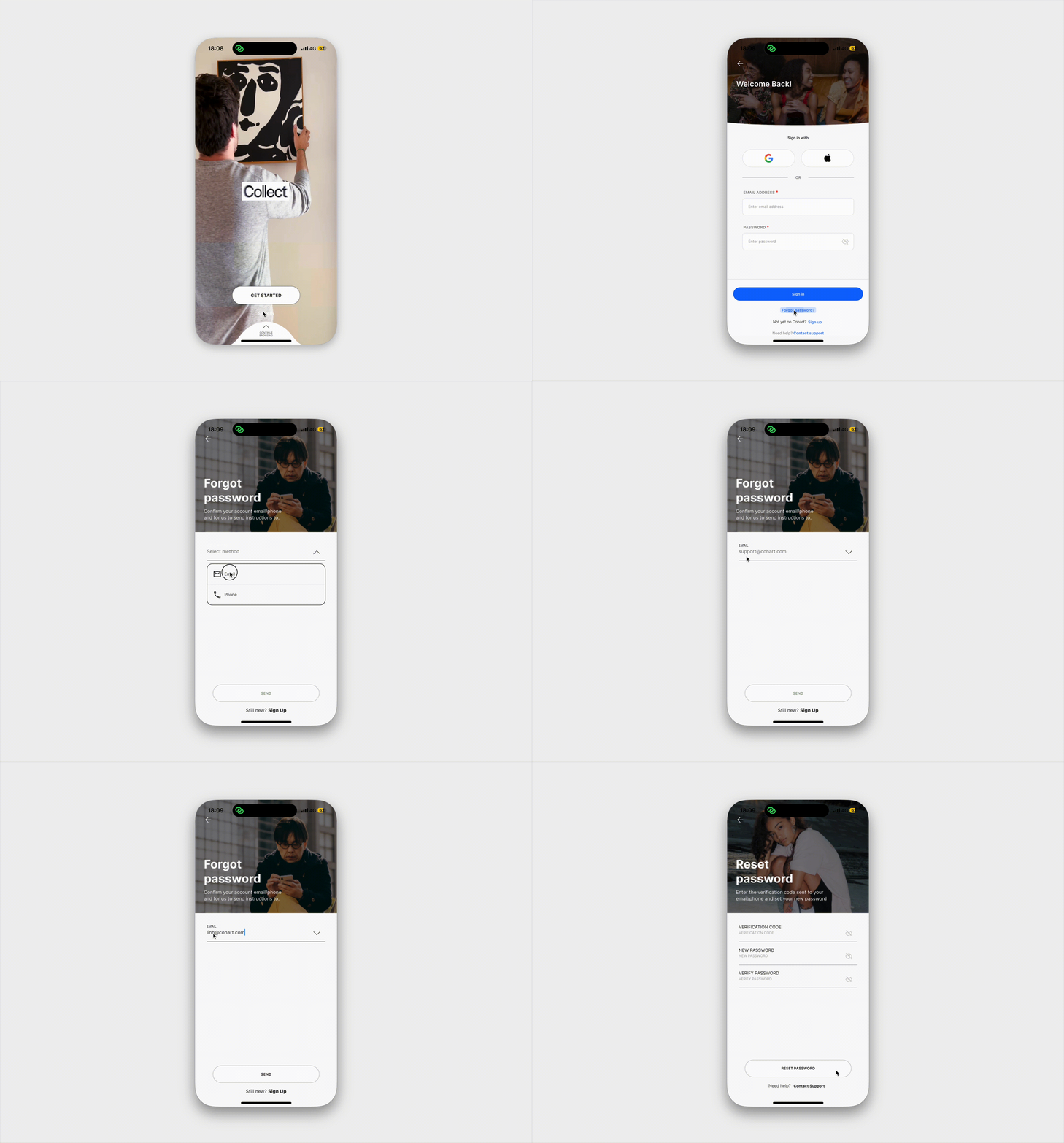
On the mobile app
- Download the Cohart mobile app
- Navigate to the Sign In screen
- Tap on
Forgot Passwordat the bottom of the screen - Choose how you can receive instructions to reset your password, email (default) or phone number (if you had created an account before 2024)
- Follow the instructions sent to you, including entering the verification code, entering a new password, and confirm the new password.
- Tap
Change Passwordto confirm.
On the web-app
- Go to our Forgot Password? page, or navigate to the Sign In screen and click on
Forgot Password - Choose how you can receive instructions to reset your password, email (default) or phone number (if you had created an account before 2024)
- Follow the instructions sent to you, including entering the verification code, entering a new password, and confirm the new password.
- Click
Reset Passwordto confirm.