---
title: How to Connect Your Cohart Website to Your Domain
description: Set up a personalized URL by purchasing a domain and pointing it to your site using DNS settings.
---
[Skip to content](https://support.cohart.com/how-to-connect-domain#main-content)

Open main navigation
Close main navigation
- [cohart.com](https://cohart.com/)
[cohart.com](https://cohart.com/)
Questions? Cohart is here to help!
- There are no suggestions because the search field is empty.
1. [Support](https://support.cohart.com/?hsLang=en)
2. [For Sellers](https://support.cohart.com/for-sellers?hsLang=en)
3. [How to Use Website](https://support.cohart.com/for-sellers?hsLang=en#how-to-use-website)
# How to Connect Your Cohart Website to Your Domain
## Set up a personalized URL by purchasing a domain and pointing it to your site using DNS settings.
#### 🎥 Need a visual walkthrough?
We’ve put together a step-by-step video series to help you connect your custom domain with ease. Whether you’re just getting started or verifying the final setup, these short clips will guide you through every part of the process:
Watch these videos as you go — they’re designed to be short, clear, and easy to follow.
### 1. How To Transfer Your Website Domain to Cohart - Squarespace Example
### 2. How To Transfer Your Website Domain to Cohart - General Example
If you prefer step-by-step instructions in text, or want to follow along in more detail, continue below for the full written guide.
### Step 1: Purchase a Domain Name
- Visit a domain registrar like **GoDaddy** or **Namecheap**.
- Search for a domain that fits your name or brand (e.g., `yourname.com`, `yourstudio.co`).
- Follow the steps to complete your purchase.
### **Step 2: Add your domain to Cohart**
- Go to **Custom Website**
- In the **Connect now to your personalized URL** section, click on **Change URL**
- Enter your domain **with “www”** (e.g., `www.yourname.com`)
- Click **Connect URL**
Once added, Cohart will generate a **CNAME value** for you.
> 💡 You’ll see a unique CNAME record right after you click **Connect URL**. You’ll need this in the next step.
### Step 3: Update Your Domain’s DNS Records
- Go back to your domain registrar and open **DNS Settings** or **Zone File Editor** for your purchased domain.
- If your domain has existing **A Records**, you can either:
- Replace them with a **CNAME Record**, or
- Delete them and **add a new CNAME Record**
- Add CNAME using the value provided by Cohart:
- **Name/Host 1:** `www` & **Content 1:** `www.cohart.com`
- **Name/Host 2** & **Content 2:** paste the value that Cohart gave you
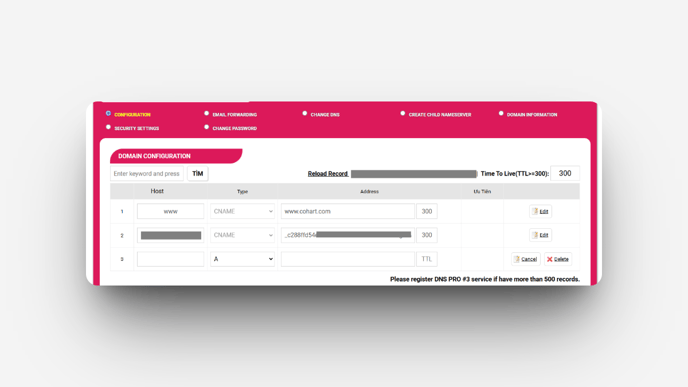
- Save your changes.
### Step 4: Verify and wait for DNS to Update
- Go back to your Custom Website page and click on Verify URL
- When both statuses are marked as ✓, your website is ready to use. If one or both statuses show ✗, the connection hasn’t been established yet. Please check that your domain’s DNS records are correctly configured.
- DNS updates can take anywhere from a few minutes to 48 hours to fully propagate.
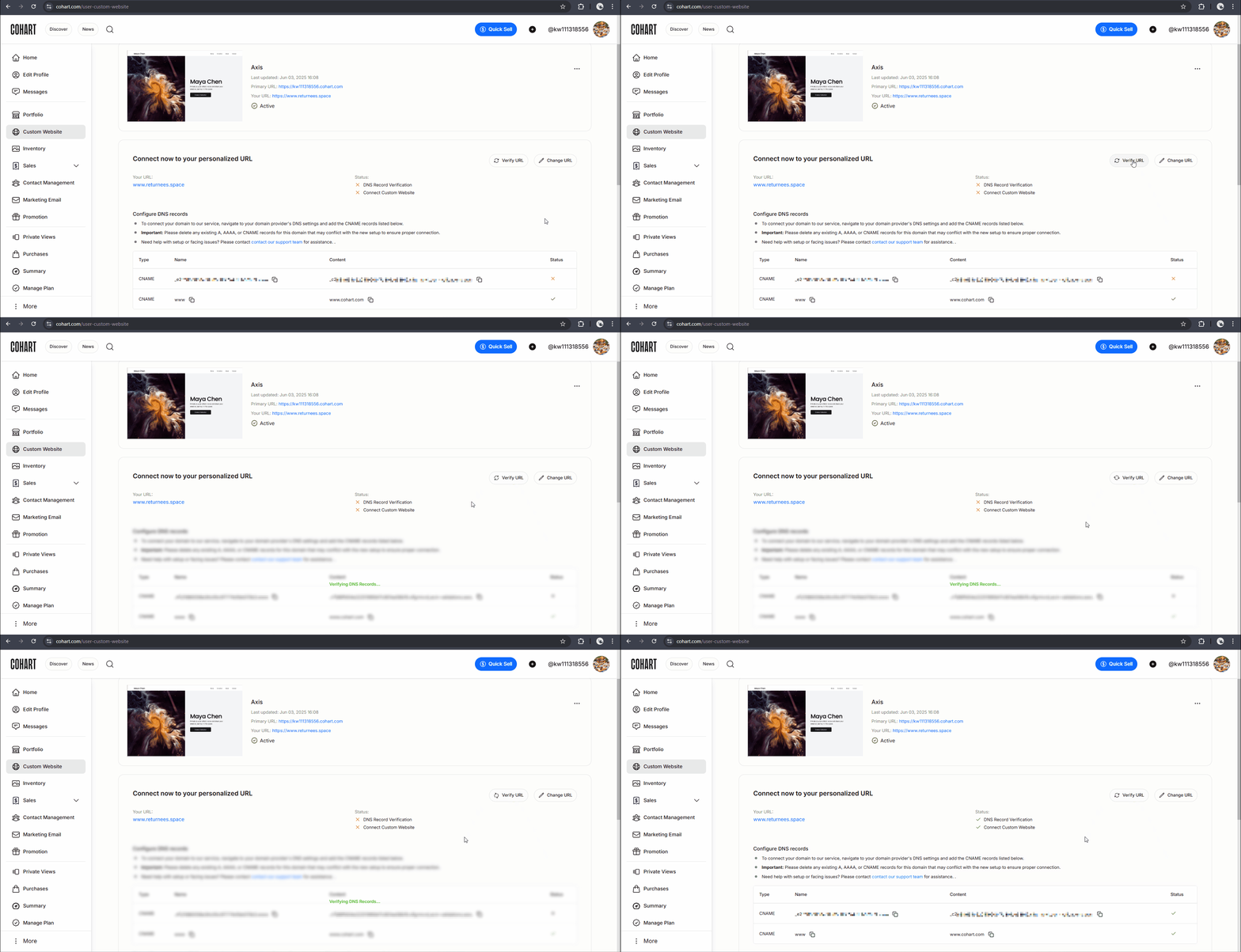
- During this time, your new URL might not work right away. That’s normal.
### Step 5: Test Your URL
- After propagation is complete, click the blue link for your domain in Custom Website page, or enter your domain directly into a browser.
- If everything is connected correctly, you’ll land on your site.
- [What is Cohart?](https://support.cohart.com/what-is-cohart?hsLang=en)
- [Cohart Onboarding Guide](https://support.cohart.com/cohart-onboarding-guide?hsLang=en)
- [Price Guidelines](https://support.cohart.com/price-guidelines?hsLang=en)
- [For Sellers](https://support.cohart.com/for-sellers?hsLang=en#main-content)
- [Manage my Account](https://support.cohart.com/for-sellers?hsLang=en#manage-my-account)
- [Personalize my Profile](https://support.cohart.com/for-sellers?hsLang=en#personalize-my-profile)
- [How to Use Link-in-Bio](https://support.cohart.com/for-sellers?hsLang=en#how-to-use-link-in-bio)
- [How to Use CRM Tools](https://support.cohart.com/for-sellers?hsLang=en#how-to-use-crm-tools)
- [How to Use Website](https://support.cohart.com/for-sellers?hsLang=en#how-to-use-website)
- [How to Use Private View](https://support.cohart.com/for-sellers?hsLang=en#how-to-use-private-view)
- [How to Use Promo Code](https://support.cohart.com/for-sellers?hsLang=en#how-to-use-promo-code)
- [How to Create Events](https://support.cohart.com/for-sellers?hsLang=en#how-to-create-events)
- [List & Sell on Cohart](https://support.cohart.com/for-sellers?hsLang=en#list-sell-on-cohart)
- [Sell Using Cohart Tools](https://support.cohart.com/for-sellers?hsLang=en#sell-using-cohart-tools)
- [For Buyers](https://support.cohart.com/for-buyers?hsLang=en#main-content)
- [Buy on Cohart](https://support.cohart.com/for-buyers?hsLang=en#buy-on-cohart)
- [Buyer Tools](https://support.cohart.com/for-buyers?hsLang=en#buyer-tools)
- [Setup & Support Services](https://support.cohart.com/setup-support-services?hsLang=en#main-content)
- [White Glove Services](https://support.cohart.com/setup-support-services?hsLang=en#white-glove-services)
- [Cohart Training](https://support.cohart.com/setup-support-services?hsLang=en#cohart-training)
- [Guidelines for the Cohart Community](https://support.cohart.com/guidelines-for-the-cohart-community?hsLang=en)
[](https://www.cohart.com/)
Cohart Support
Copyright © 2026, Cohart
```json
{
"@context" : "https://schema.org",
"@type" : "VideoObject",
"caption" : {
"@type" : "MediaObject",
"contentUrl" : "https://support.cohart.com/media-transcripts/191161758487/en.vtt",
"inLanguage" : "en",
"name" : "en Captions"
},
"contentUrl" : "https://stream.mux.com/c9Uz6TRnAoL02T5rP4z1t1fDzwLJIo5S4C7k6BCcYloo/capped-1080p.mp4",
"dateModified" : "2025-06-09T09:22:18.765Z",
"duration" : "PT58S",
"height" : 1080,
"name" : "connect-custom-domain",
"thumbnailUrl" : "https://43564049.fs1.hubspotusercontent-na1.net/hubfs/43564049/connect-custom-domain.mp4/medium.jpg",
"uploadDate" : "2025-06-09T09:22:13.768Z",
"width" : 1920
}
```