---
title: How to Manage my Contacts List
description: Cohart's Contacts list allows users to view, track, and manage their contacts and subscribers—on and off the platform.
---
[Skip to content](https://support.cohart.com/crm-contacts#main-content)

Open main navigation
Close main navigation
- [cohart.com](https://cohart.com/)
[cohart.com](https://cohart.com/)
Questions? Cohart is here to help!
- There are no suggestions because the search field is empty.
1. [Support](https://support.cohart.com/?hsLang=en)
2. [For Sellers](https://support.cohart.com/for-sellers?hsLang=en)
3. [How to Use CRM Tools](https://support.cohart.com/for-sellers?hsLang=en#how-to-use-crm-tools)
# How to Manage my Contacts List
## Cohart's Contacts list allows users to view, track, and manage their contacts and subscribers—on and off the platform.
### What is the Contacts list?
The Contacts list allows users to store and manage the information of individuals they frequently interact with. This could include personal or business contacts, such as friends, family, colleagues, clients, or buyers. The contacts list includes essential details such as name, phone number, email address, and other relevant information.
The feature makes it easy to search for, organize, and communicate with contacts, as well as categorize them into groups for more efficient management.
[How to add and edit a contact?](https://support.cohart.com/crm-contacts#Add-Contact)
[How to import my external contact list into Cohart?](https://support.cohart.com/crm-contacts#Import-Contact)
[How to create and edit groups?](https://support.cohart.com/crm-contacts#Create-Group)
[How to add contacts to groups?](https://support.cohart.com/crm-contacts#Add-Contact-to-Group)
[Frequently asked questions about the Contacts List](https://support.cohart.com/crm-contacts#FAQs)
---
### How to add and edit a contact?
#### Adding a Contact:
1. Navigate to the [Contacts](https://www.cohart.com/crm/contacts) tab in your Dashboard.
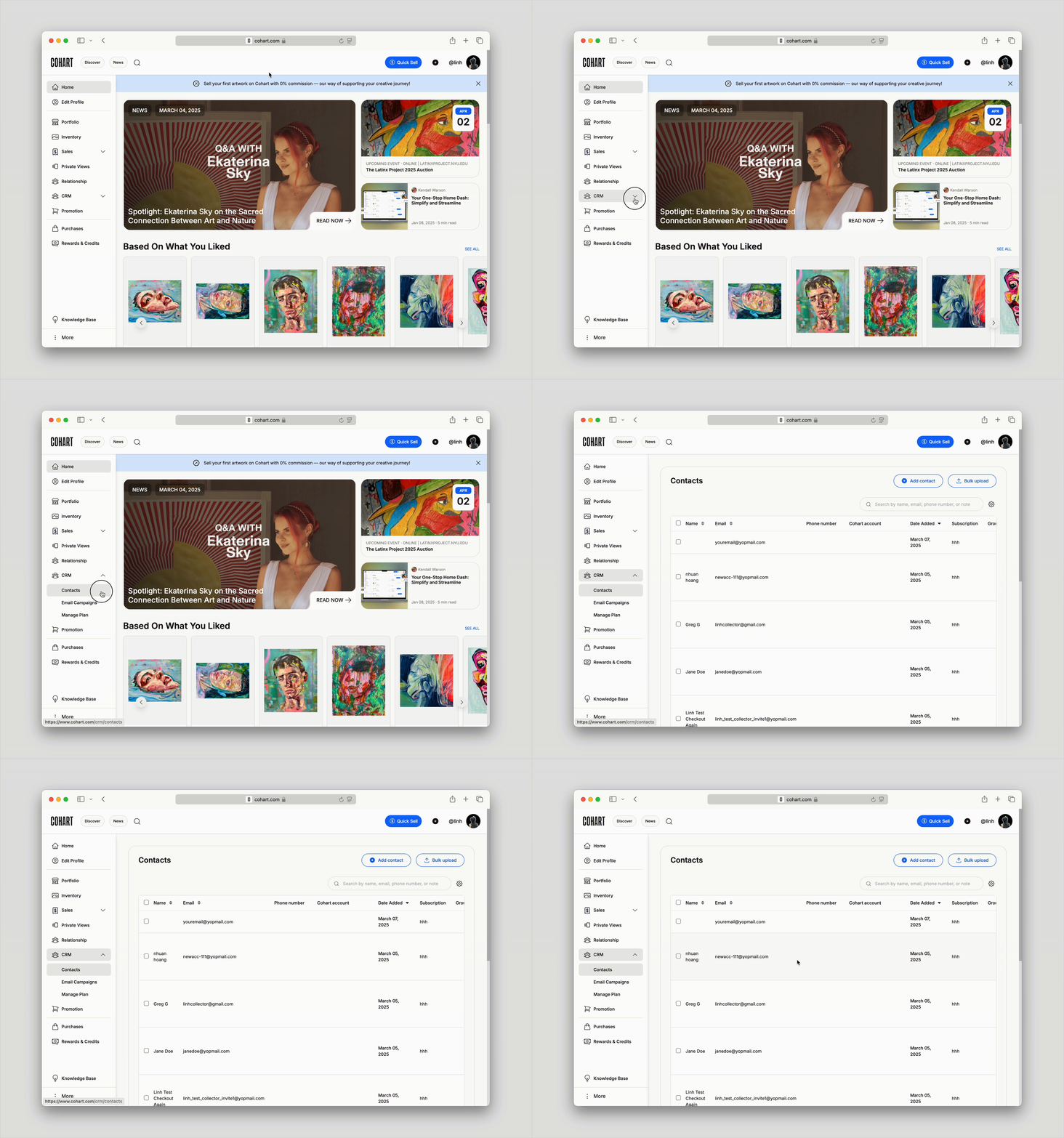
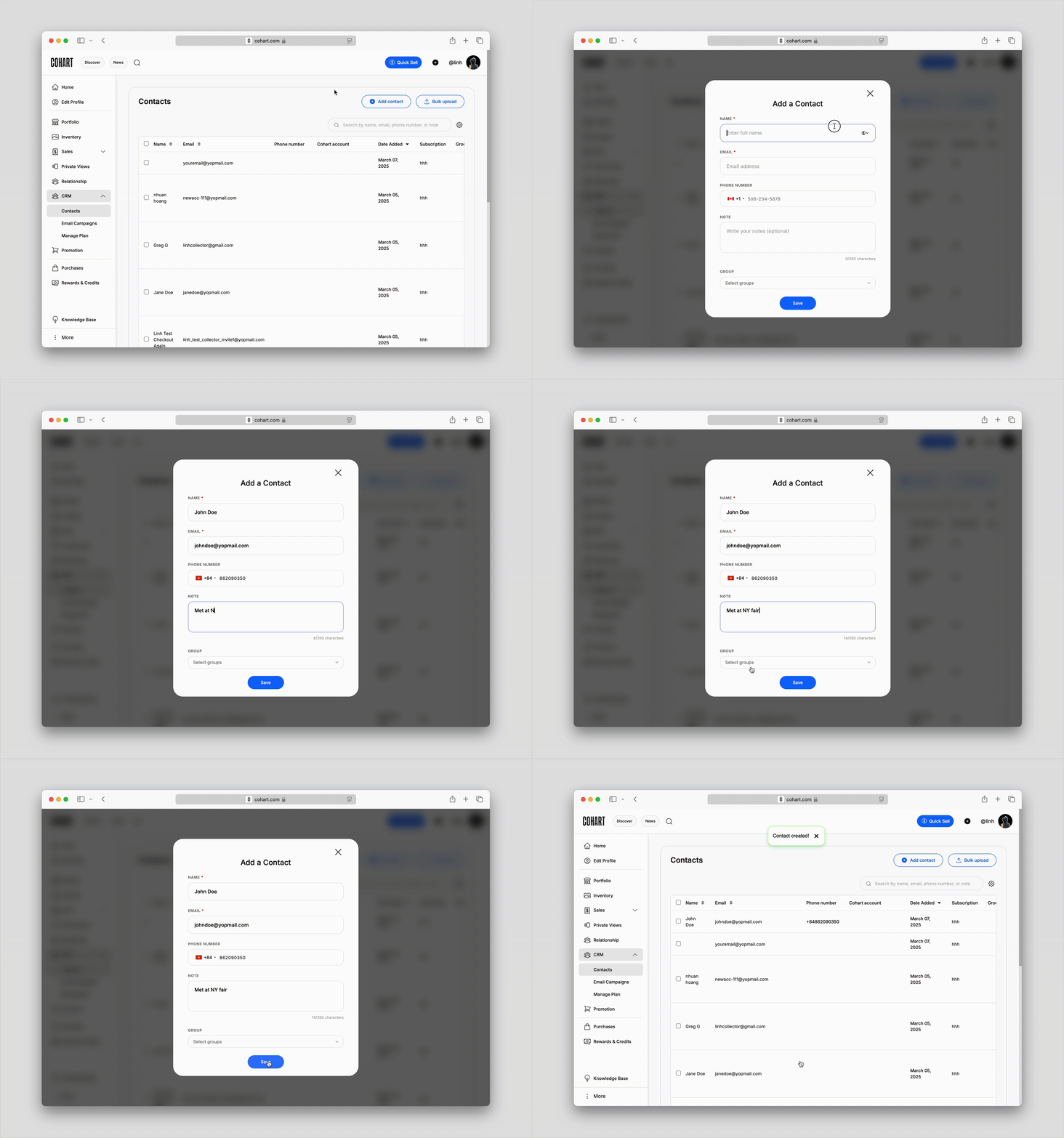
2. Click on `+ Add Contact`, found in the center or top right corner of the page.
3. A form will appear, prompting you to input relevant details for the new contact, such as: Name, Phone Number, Email Address, Additional notes
4. After entering the details, click the `Save` button to add the contact to your list.
#### Editing a Contact:
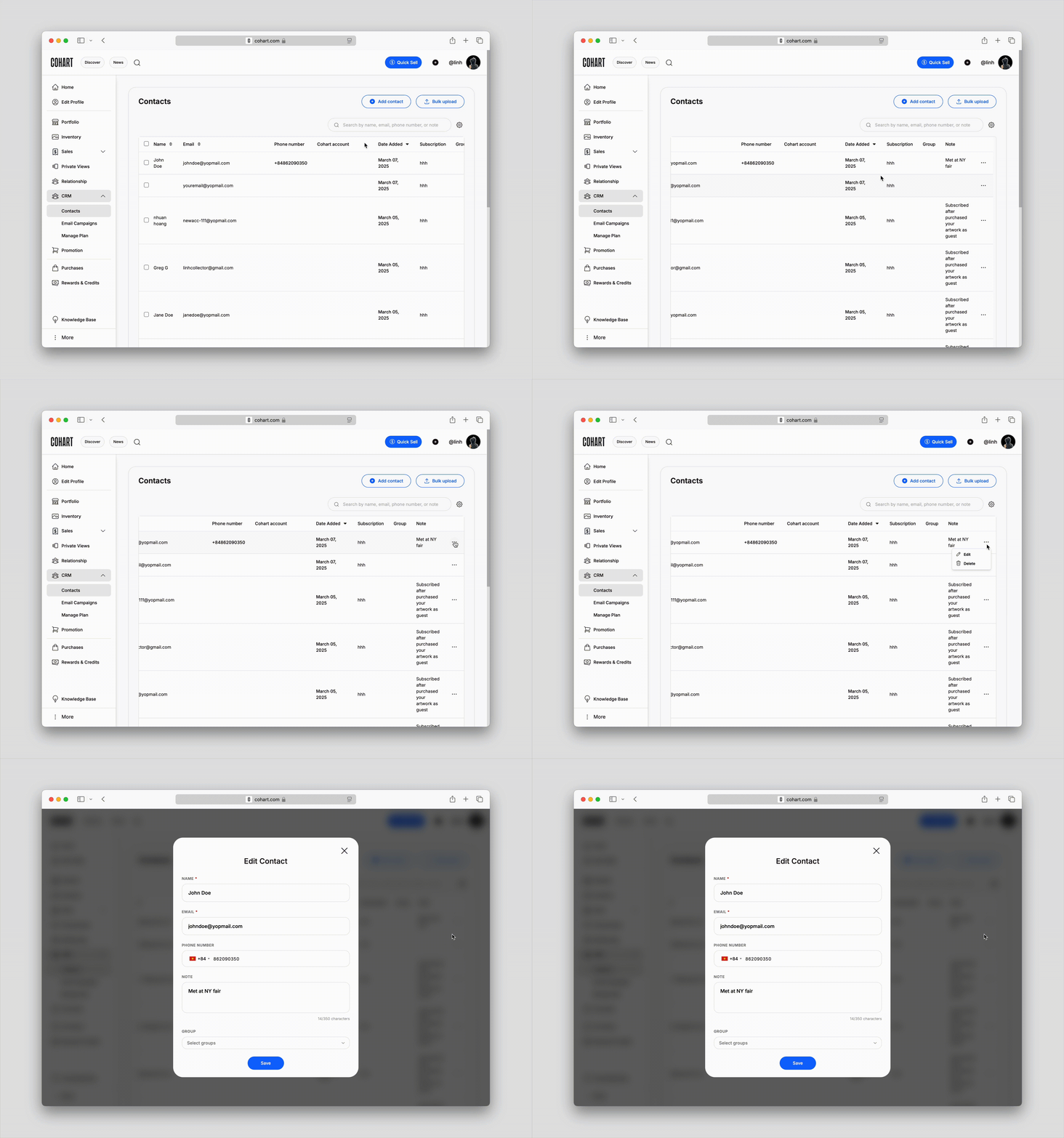
1. Find the contact you wish to edit, click on the `···` context menu
2. Click on the `Edit` button
3. Update any details that need to be changed, such as phone numbers, emails, or notes
4. Click the `Save` button to update the contact’s information
#### Deleting a Contact:
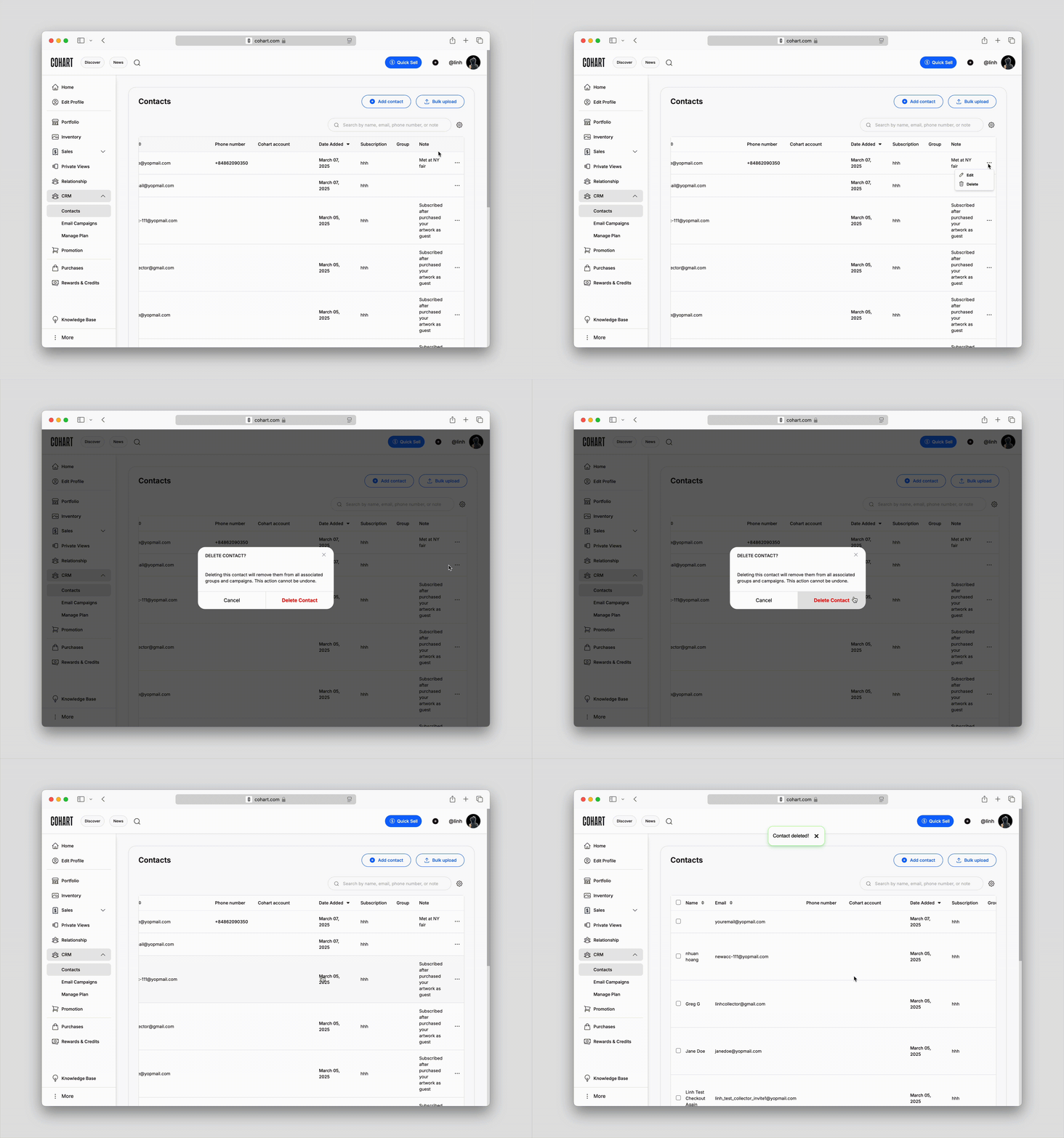
1. Find the contact you wish to delete, click on the `···` context menu
2. Click on the `Delete` button
3. A confirmation modal will appear, click on `Delete contact` again to confirm
---
### How to import my external contact list into Cohart?
1. In the [Contacts](https://www.cohart.com/crm/contacts) tab in your Dashboard, select the `Bulk upload` button in the top right corner of the page
2. Click on `Upload CSV` to load your file. You may need to map the fields (such as name, phone number, email) to the appropriate categories in Cohart. Ensure that the correct fields are matched before proceeding.
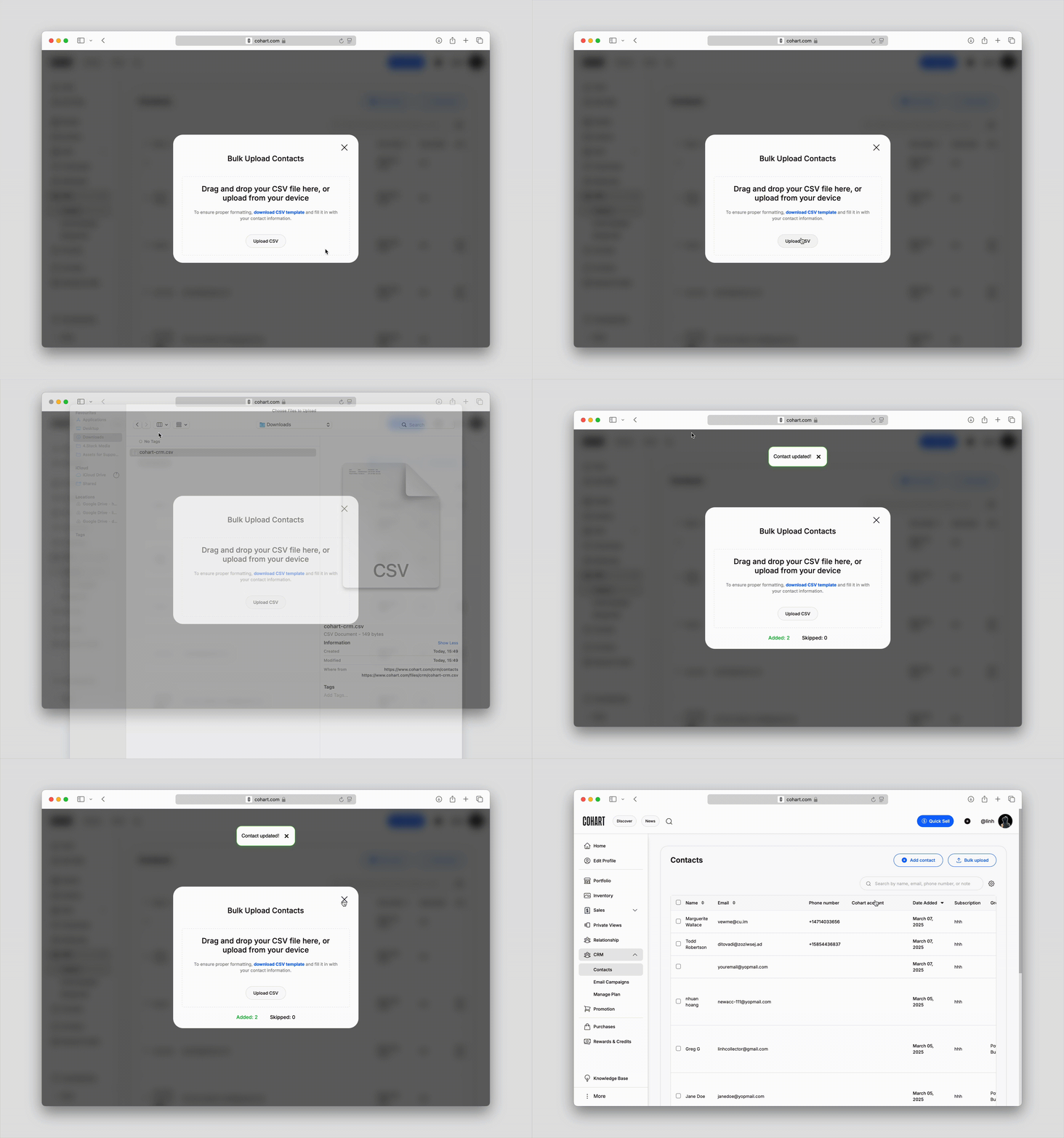
3. To ensure your file matches Cohart's system, click on `Download CSV template` and fill in with your existing contacts. The template will have **Name**, **Email**, **Phone Number**, and **Note**.
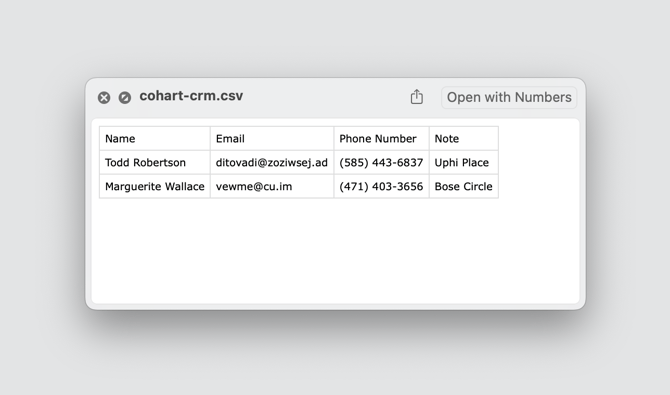
4. After the import is complete, check your Contacts list to ensure all details were correctly imported. If there are any issues, you can edit individual contacts manually.
---
### How to create and edit groups?
#### Creating a Group:
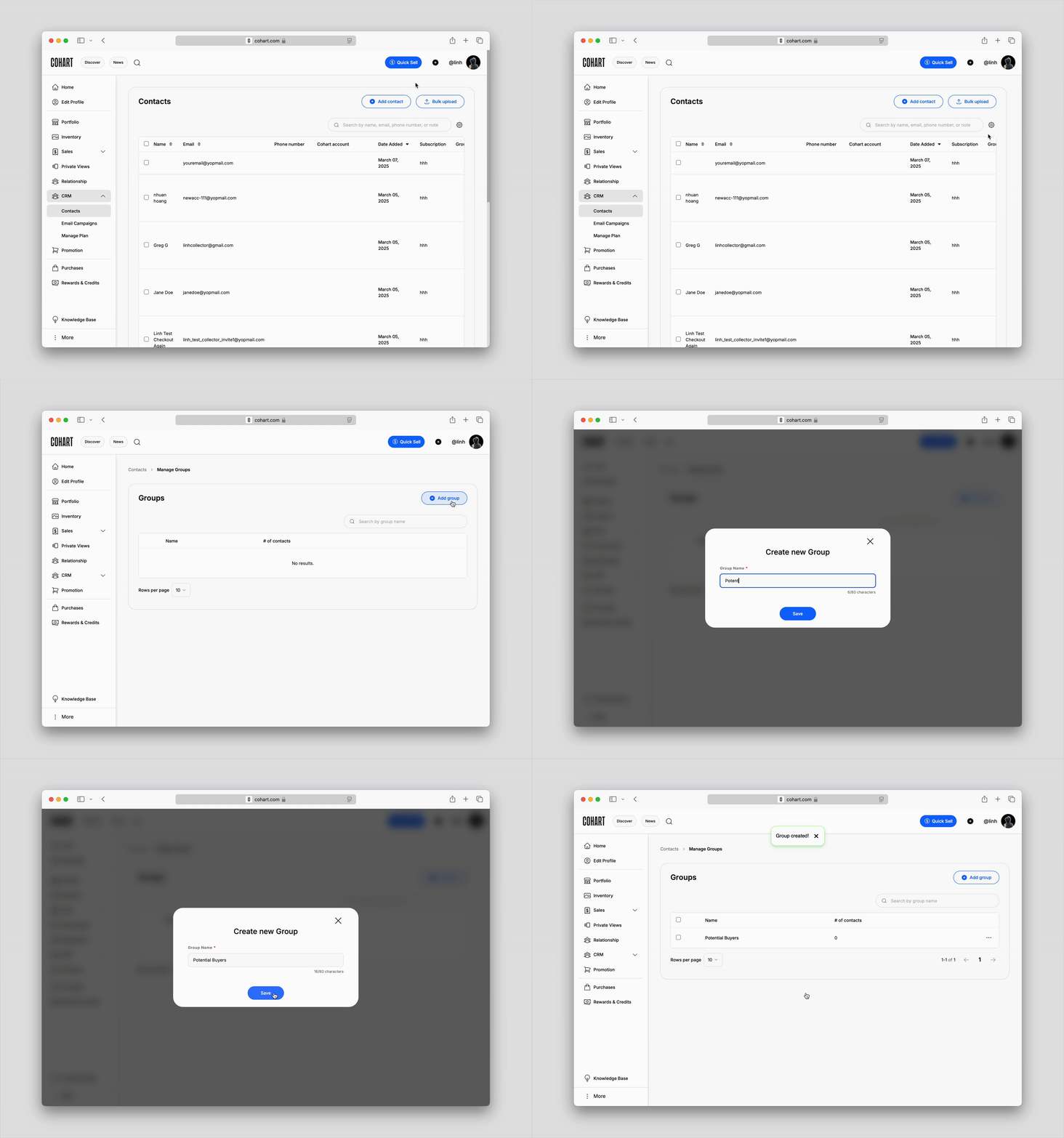
1. Navigate to the [Contacts](https://www.cohart.com/crm/contacts) tab in your Dashboard, find the `Settings` icon next to the search bar, then click on Manage groups option
2. In the [Groups subpage](https://www.cohart.com/crm/groups), click on `Add Group` button
3. Enter a `Group name` for the group that reflects the category of contacts (e.g., "Work," "Buyers," "Potential Buyers")
4. Click on `Save` to finish creating the new group
#### Editing a Group:
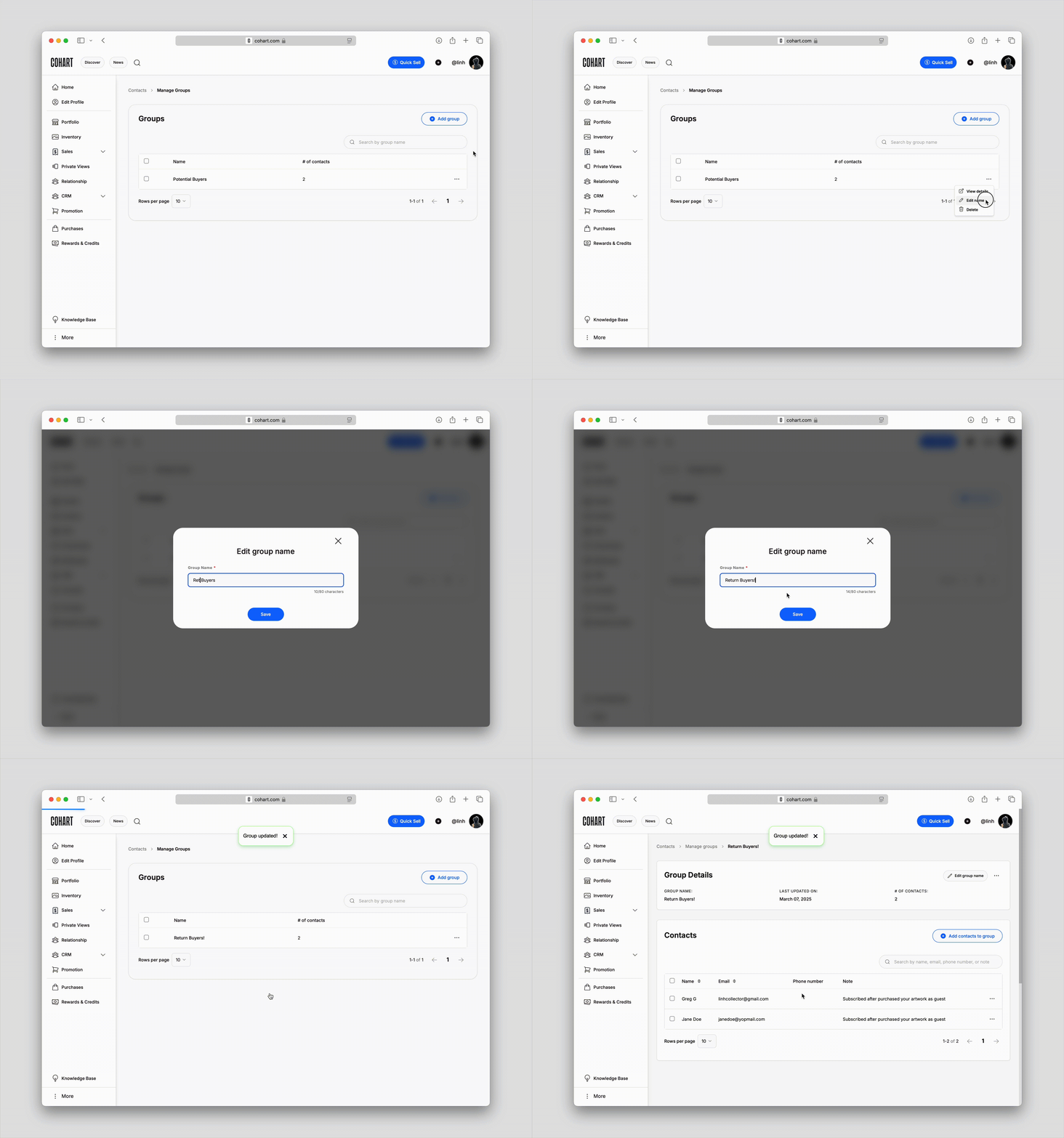
1. In the [Groups subpage](https://www.cohart.com/crm/groups), find the group you wish to edit, click on the `···` context menu
2. Click on the `Edit name` button
3. Enter a new group name, then click `Save` to update its name
---
### How to add contacts to groups?
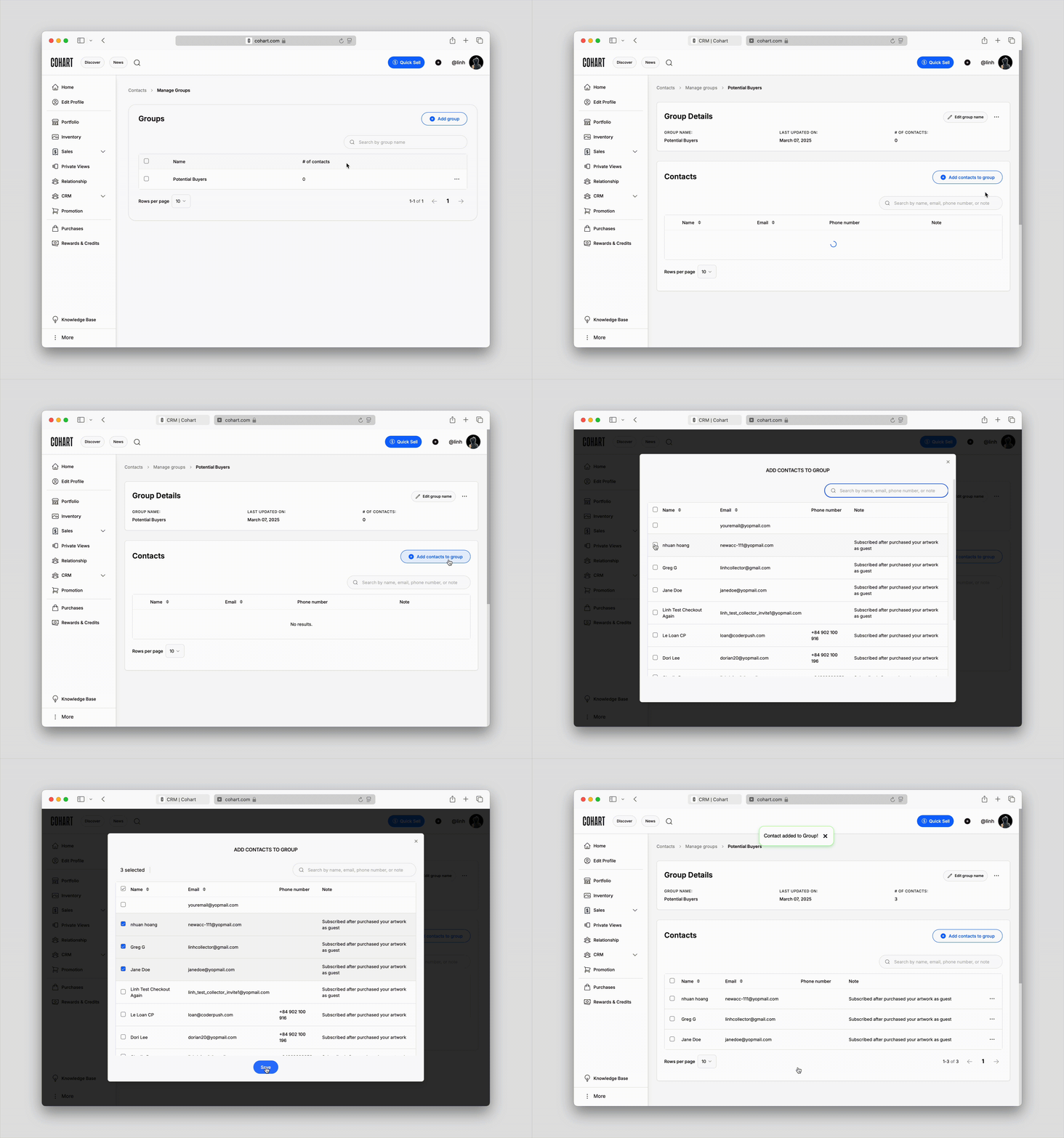
#### Method 1: Add from individual group subpage
1. Navigate to the individual group subpage that you'd like to add contacts to
2. Click on the `Add contacts to group` button
3. Select the contact(s) you'd like to add
4. Click on `Save` to see the contacts appear in the group
#### Method 2: Add from individual contact details
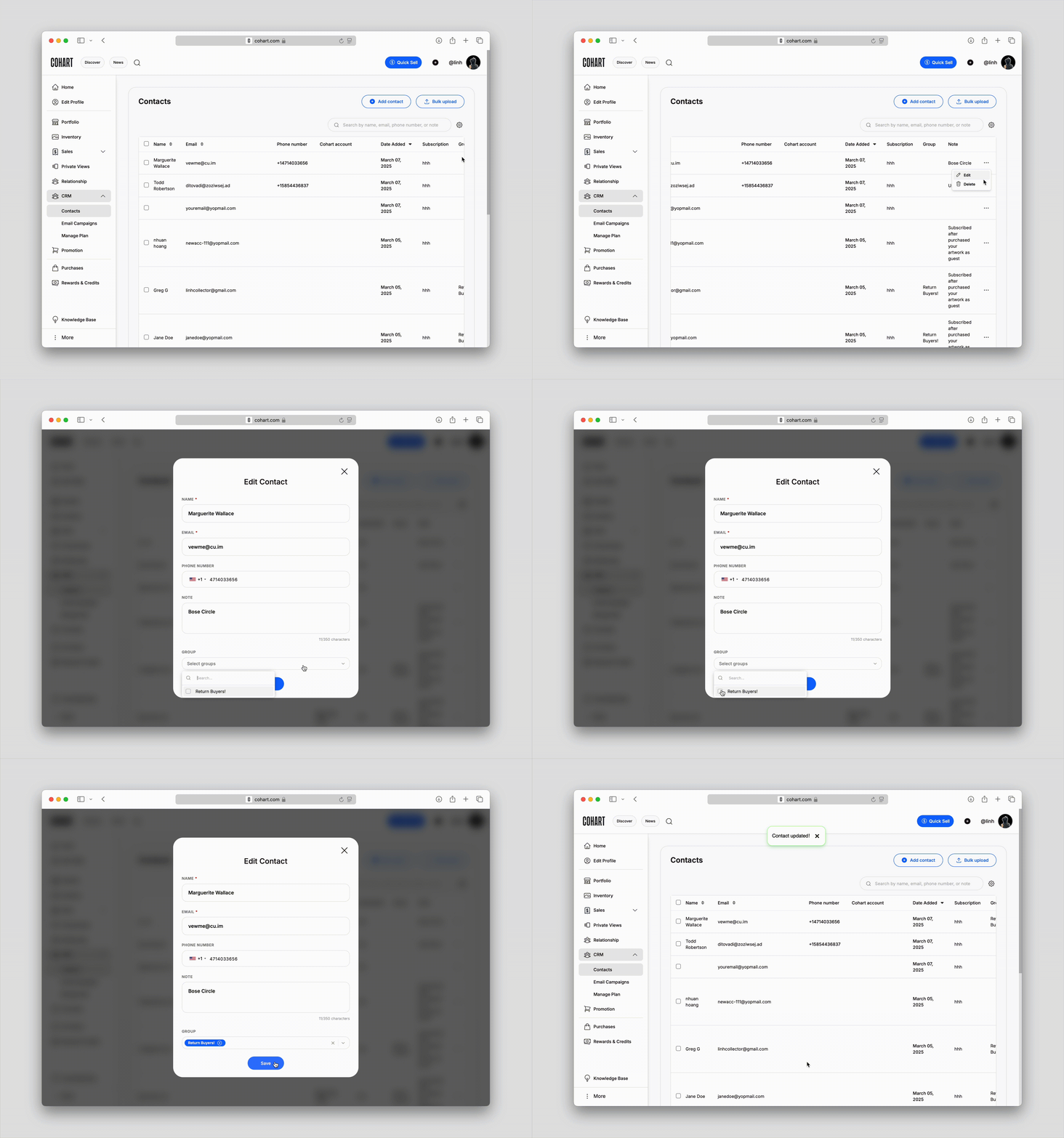
1. Navigate to the individual contact that you'd like to add to a group, click on the `···` context menu
2. Click on the `Edit` button
3. Click on the `Group` field, a list of available groups will appear
4. Select the group(s) you want to add the contact to, or remove from
5. Click `Save` to add the contact to the selected group(s)
#### Method 3: Add from individual contact details
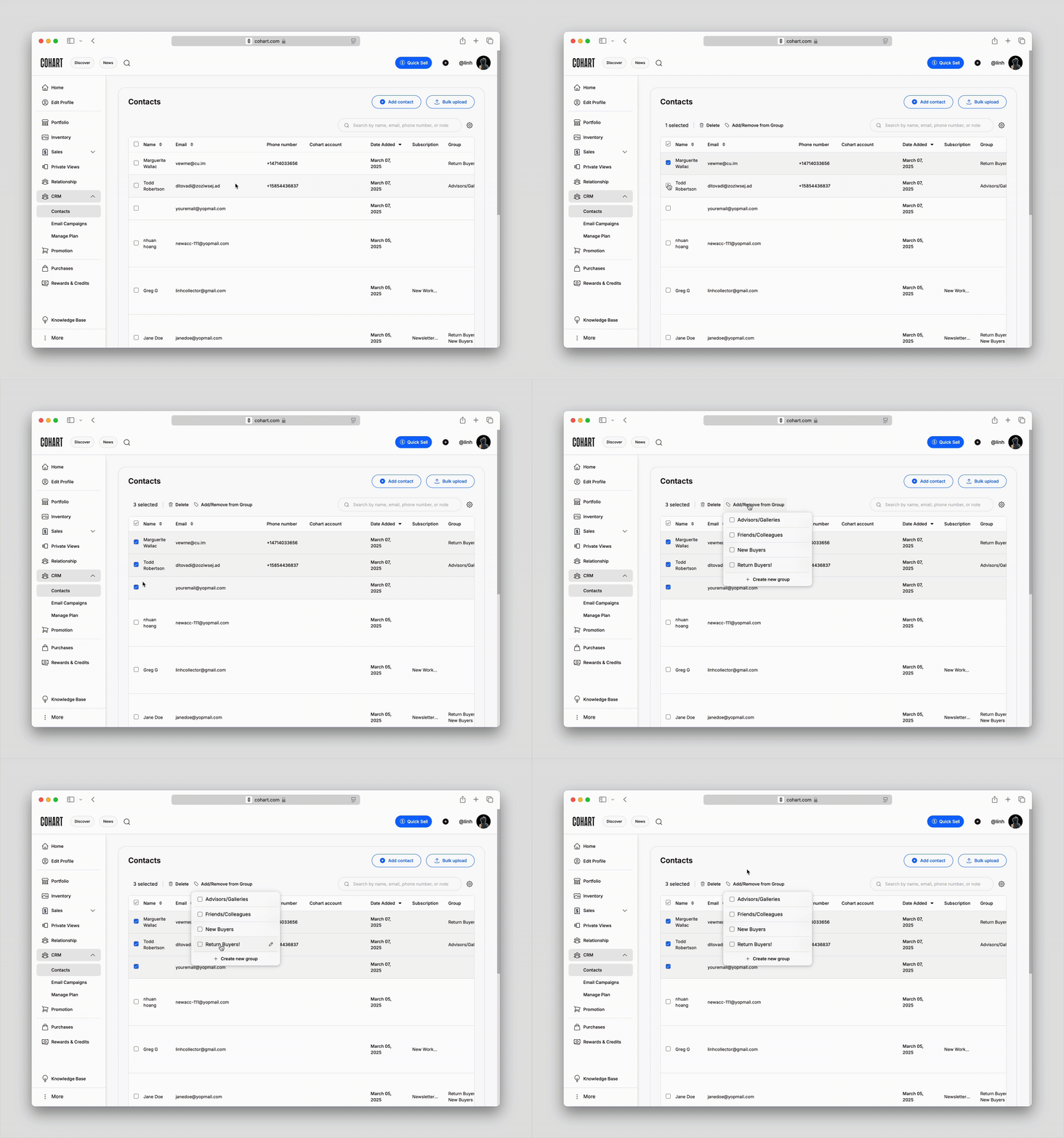
1. Navigate to the Contacts list and select contact(s) that you'd like to add to group(s).
2. Click on the `Add/Remove from Group` button, a list of available groups will appear
3. Select the group(s) you want to add the contact(s) to, or remove from
4. Click on each group to add the selected contact(s) to, or remove from
---
### How to export contacts?
#### Creating a Group:
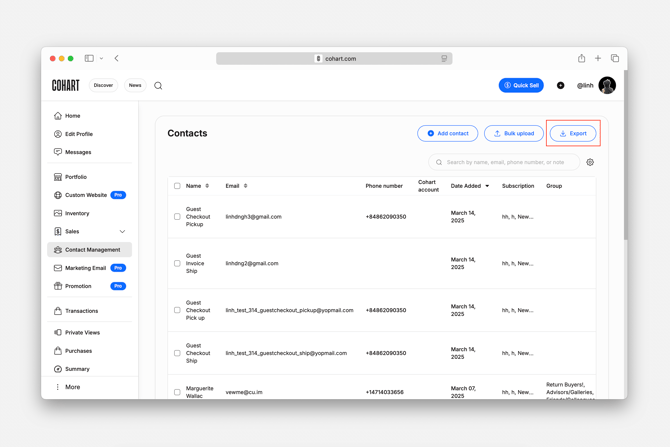
1. Navigate to the [Contacts](https://www.cohart.com/crm/contacts) tab in your Dashboard, click on the `Export` button in the top right corner
2. Your browser might ask for your permission to download the first time you take this action
3. After downloaded, your contacts list will be saved as a .csv file, which you can later on import into common apps such as Google Sheets.
---
### Here are some frequently asked questions about the Contacts List
#### **Can I add multiple phone numbers or emails to one contact?**
No, currently you can only add 1 phone number or email address to each contact.
#### **How do I delete a contact?**
To delete a contact, go to the contact's details page and look for the "Delete" option. Once selected, the contact will be removed from your list and any existing email campaign permanently.
#### **What if I accidentally added a contact to the wrong group?**
You can easily edit groups by removing or reassigning contacts to other groups through the contact's details page or by editing the group itself.
#### **How do I search for contacts in a specific group?**
You can search for contacts within a group by navigating to the "Groups" section and selecting the desired group. From there, a search option should be available to filter contacts within the group.
Learn more about [Email Campaigns](https://support.cohart.com/crm-email-campaigns?hsLang=en).
- [What is Cohart?](https://support.cohart.com/what-is-cohart?hsLang=en)
- [Cohart Onboarding Guide](https://support.cohart.com/cohart-onboarding-guide?hsLang=en)
- [Price Guidelines](https://support.cohart.com/price-guidelines?hsLang=en)
- [For Sellers](https://support.cohart.com/for-sellers?hsLang=en#main-content)
- [Manage my Account](https://support.cohart.com/for-sellers?hsLang=en#manage-my-account)
- [Personalize my Profile](https://support.cohart.com/for-sellers?hsLang=en#personalize-my-profile)
- [How to Use Link-in-Bio](https://support.cohart.com/for-sellers?hsLang=en#how-to-use-link-in-bio)
- [How to Use CRM Tools](https://support.cohart.com/for-sellers?hsLang=en#how-to-use-crm-tools)
- [How to Use Website](https://support.cohart.com/for-sellers?hsLang=en#how-to-use-website)
- [How to Use Private View](https://support.cohart.com/for-sellers?hsLang=en#how-to-use-private-view)
- [How to Use Promo Code](https://support.cohart.com/for-sellers?hsLang=en#how-to-use-promo-code)
- [How to Create Events](https://support.cohart.com/for-sellers?hsLang=en#how-to-create-events)
- [List & Sell on Cohart](https://support.cohart.com/for-sellers?hsLang=en#list-sell-on-cohart)
- [Sell Using Cohart Tools](https://support.cohart.com/for-sellers?hsLang=en#sell-using-cohart-tools)
- [For Buyers](https://support.cohart.com/for-buyers?hsLang=en#main-content)
- [Buy on Cohart](https://support.cohart.com/for-buyers?hsLang=en#buy-on-cohart)
- [Buyer Tools](https://support.cohart.com/for-buyers?hsLang=en#buyer-tools)
- [Setup & Support Services](https://support.cohart.com/setup-support-services?hsLang=en#main-content)
- [White Glove Services](https://support.cohart.com/setup-support-services?hsLang=en#white-glove-services)
- [Cohart Training](https://support.cohart.com/setup-support-services?hsLang=en#cohart-training)
- [Guidelines for the Cohart Community](https://support.cohart.com/guidelines-for-the-cohart-community?hsLang=en)
[](https://www.cohart.com/)
Cohart Support
Copyright © 2026, Cohart